
TL;DR:
🆕 What's New:
🤖 13 new models went live!
🔌 Bring your own model: add any OpenAI-compatible model with your own API key.
💡 Did You Know: You can choose multiple models and adjust thinking effort easily.
📍 Let's Connect: Check out our socials!
What's New
🤖 New models added in the past 30 days
Thirteen new models are now live in MemoryBox. Some are on by default, and the rest you can turn on when you want them. Availability depends on your region.
| Company | Model | Region |
|---|---|---|
| Anthropic | Claude Fable 5.1 | US+EMEA |
| Claude Opus 5.5 | US+EMEA | |
| Claude Sonnet 5.5 | US+EMEA | |
| Claude Haiku 5.5 | US+EMEA | |
| OpenAI | GPT-6.1 Sol | US+EMEA |
| GPT-6 Astra | US+EMEA | |
| GPT-6 Luna | US+EMEA | |
| Gemini 3.8 Flash | US+EMEA | |
| Gemini 4 Argon | US+EMEA | |
| DeepSeek | DeepSeek V4.1 Flash | All |
| Zhipu | GLM-5.3 | All |
| GLM-5.3 Flash | All | |
| ByteDance | Seed 2.1 Lite | All |
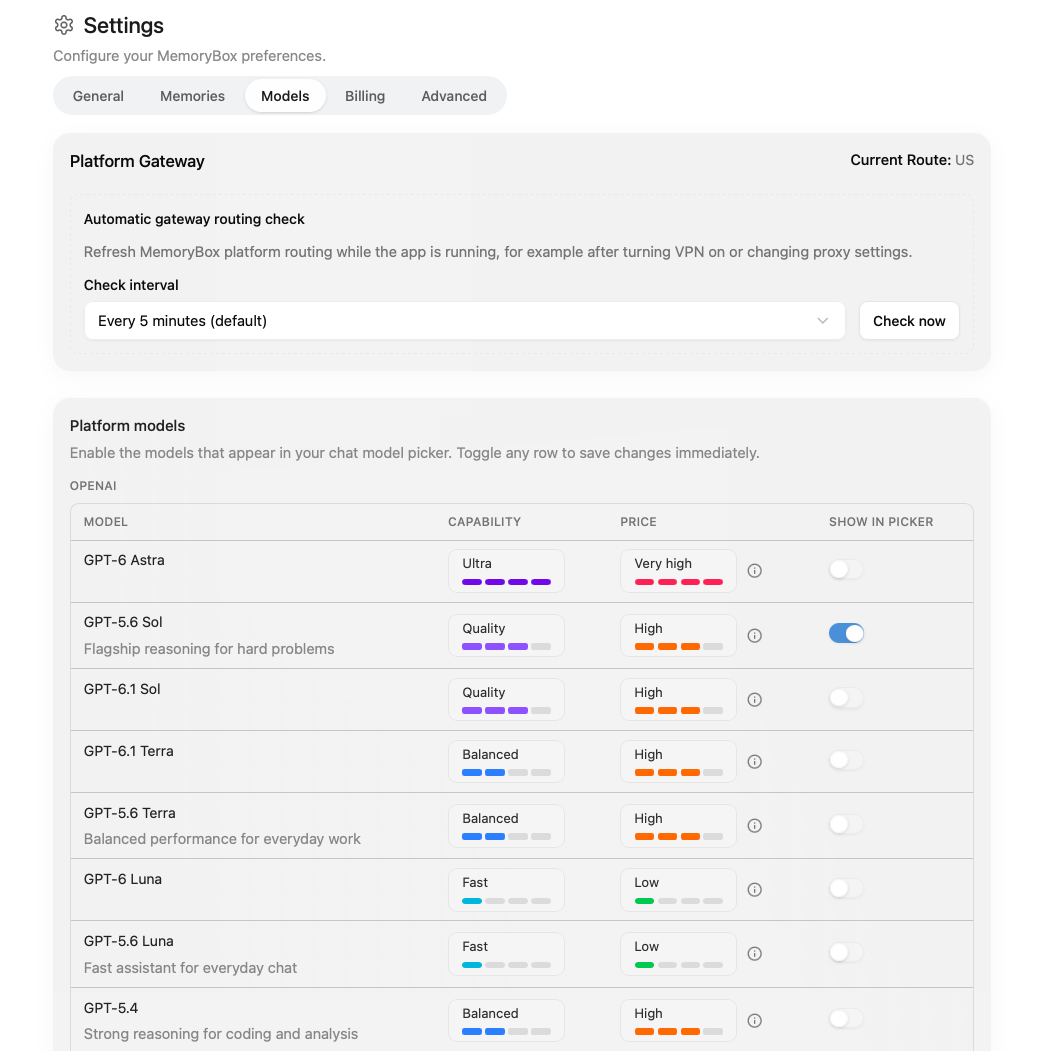
How to turn on the new model
|
|
FAQ
Q. Which model is used by default?
A. In the US, GPT-6 Luna is the default chat model. Claude Sonnet 5.5 is also on by default in the US, and Seed 2.1 Lite is on by default in the US and APAC.
Q. Why can't I see some models?
A. Availability depends on your region. DeepSeek, GLM, and Seed models are available in the US and APAC. In oarder to government regulations, the Claude, GPT, and Gemini models listed here are not available in some regions. If a model is available in your region but missing from the chat menu, it is probably turned off. Follow the steps above to turn it on. Note that the cost of each model is shown in the model setting screen.
Q. Can I turn a model off again?
A. Yes. Turn off its switch in Settings → Models, and it disappears from the chat model menu. You can turn it back on at any time.
🔌 Bring your own model
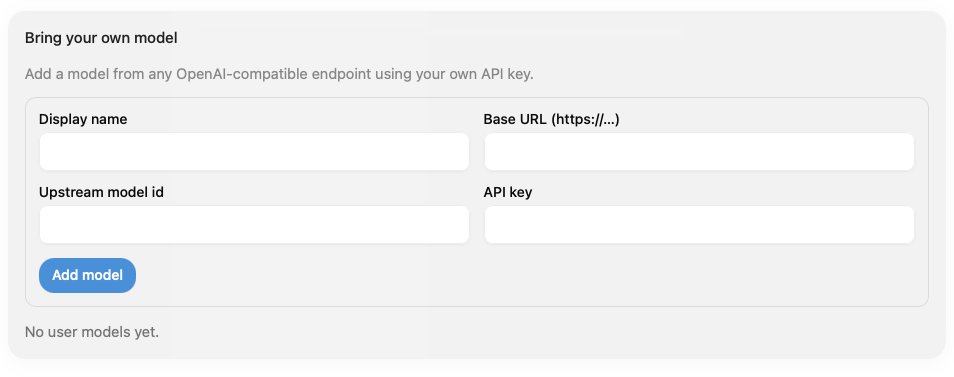
Want to use a model that isn't in our list? Now you can add your own. If a model service works with the OpenAI API format, you can connect it to MemoryBox with your own API key. Then you can chat with it just like any other model, with your memories included.
This is for people who already pay for a model service, want to try a new or niche model, or run a model on their own server.
How it works
|
|
FAQ
Q. Is my API key safe?
A. Your API key is stored in your computer's secure credential store, like Keychain on a Mac. When you remove the model, MemoryBox deletes the key too.
Q. Who bills me for a model I add?
A. MemoryBox does not charge you for the models that you bring.
Q. How do I remove a model I added?
A. In Settings → Models, find the model under Bring your own model and click Remove. This also deletes its stored API key, and it can't be undone.
Did You Know?
Did you know you can choose more than one model in MemoryBox, and change how much the model thinks before it answers?
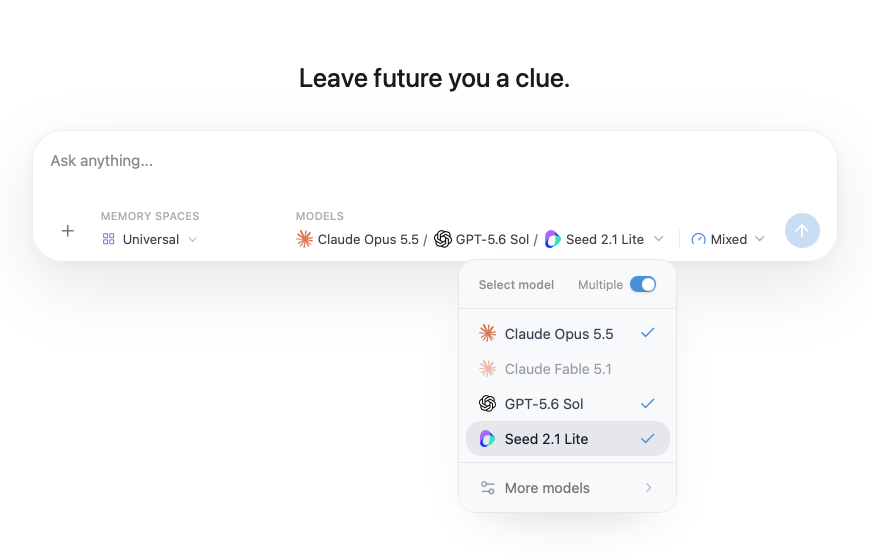
Choose multiple models
Open the model menu in the chat toolbar and turn on the Multiple switch at the top. Then pick up to three models. When you send a message, each model answers side by side, so you can compare their answers to the same question. To go back to one model, turn Multiple off.
Using more than one model helps when the question has no single right answer, like a big decision or a plan you want to test from different angles. For everyday questions, one model is enough. Pick a fast model for quick questions and a stronger model for harder work, and switch any time from the same menu.
Change thinking effort
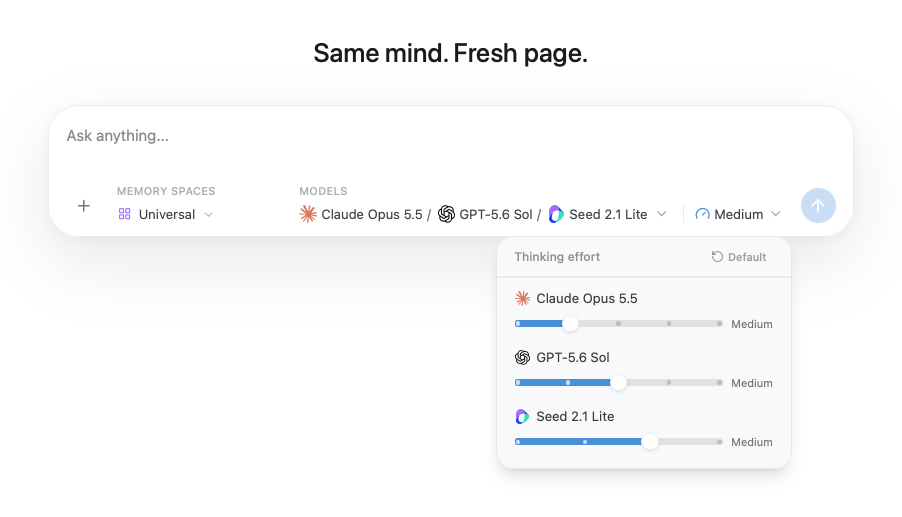
Next to the model menu, you'll see the Thinking effort button (a small gauge icon). Click it and move the slider to pick a level. The levels depend on the model, and usually go from Low to High (some models also offer Minimal, Extra high, or Max). Lower effort gives you a faster reply. Higher effort lets the model think longer before it answers, so the answer is more careful but takes more time. Click Reset to default to go back to the model's default level.
If you chose more than one model, you can set the effort for each model separately. When they use different levels, the button shows Mixed.
Tips for better answers:
Use a lower thinking effort for quick tasks: simple questions, short rewrites, summaries, or finding something in your memories.
Use a higher thinking effort for harder tasks: planning, comparing options, solving a problem step by step, or writing a long document.
Let's Connect
Follow us for user stories, AI tips, and a meet our table tennis nerds at MemoryBox: