
TL;DR:
🆕 What's New:
- 🤖 4 more models are live!
- 📱 MemoryBox Mobile is now available: Get the Alpha version from the App Store or Google Play.
💡 Did You Know: Connect MemoryBox to the apps you already use.
💬 In the Wild: Catherine Zell on why a local, on-device chatbot is "perfect for everything."
📍 Let's Connect: Follow us on social media!
What's New
🤖 4 More Models
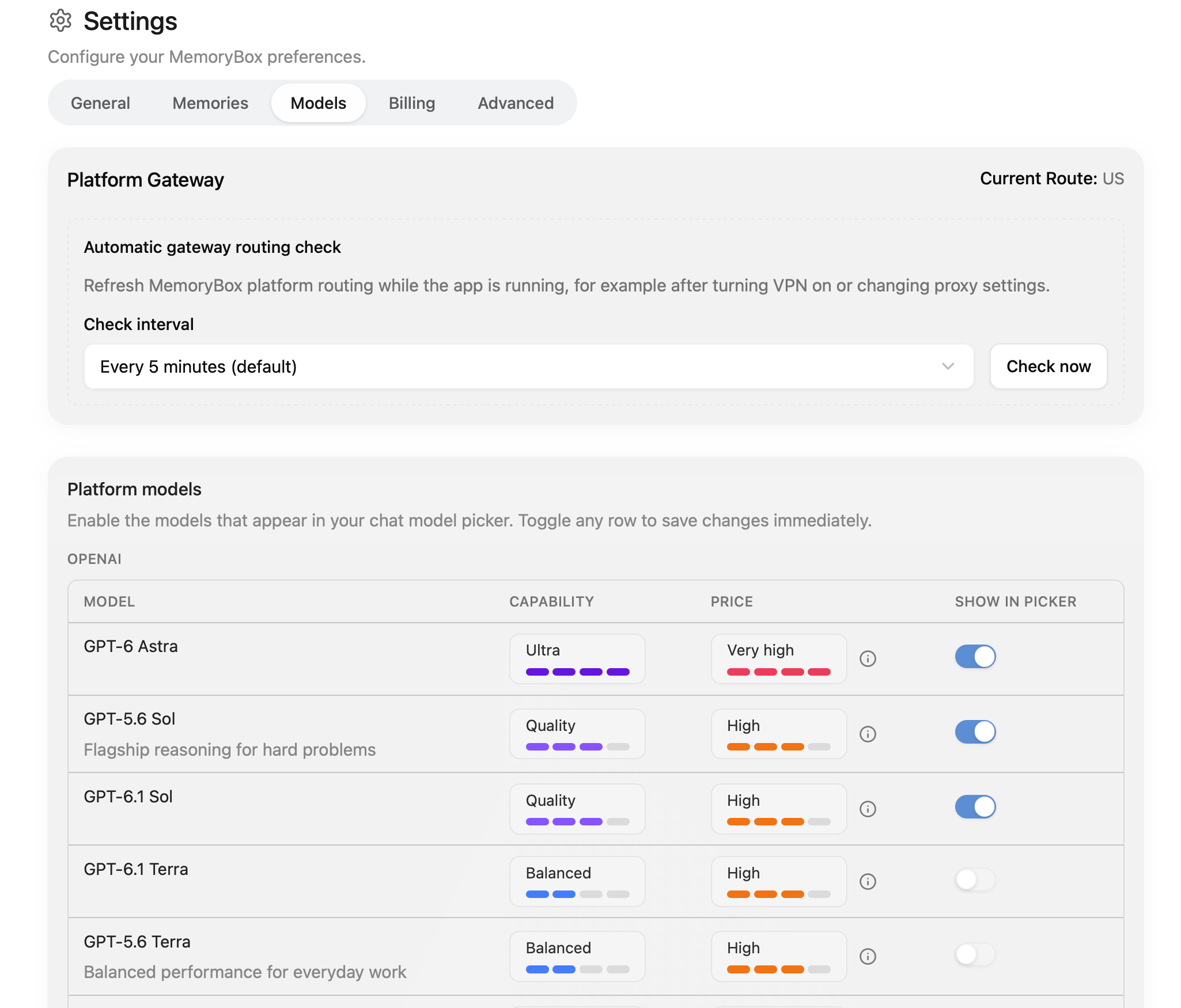
Four more models are now live in MemoryBox. Availability depends on your region, and this month we added models for EMEA, too.
| Company | Model | Region |
|---|---|---|
| Anthropic | Claude Fable 5.2 | US + EMEA |
| OpenAI | GPT-6.1 Terra | US + EMEA |
| Moonshot AI | Kimi K3.1 Pro | All regions |
| Alibaba | Qwen3.8 Flash | APAC |
How to turn on a model
|
|
FAQ
Q. Why can't I see some of these models? A. Availability depends on your region. Kimi K3.1 Pro is available in all regions. Claude Fable 5.2 and GPT-6.1 Terra are available in the US and EMEA, and Qwen3.8 Flash is available in APAC. If a model is available in your region but missing from the chat menu, it is probably turned off. Follow the steps above to turn it on.
Q. My chat switched to a different model on its own. Why? A. This happens when your network changes and the model you picked isn't available on the new network. MemoryBox switches to the default model and tells you. Pick another model from the model menu.
📱 MemoryBox Mobile (Alpha)
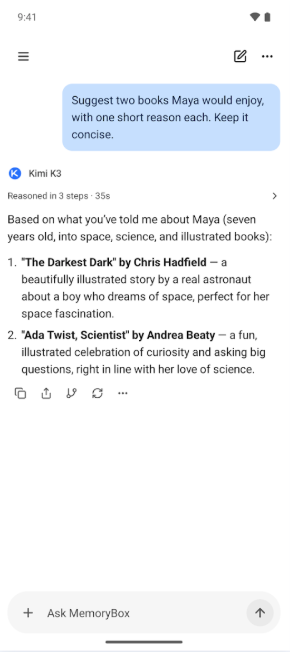
MemoryBox is now in the App Store and on Google Play. This is an early Alpha version, and we have many exciting features on the way.
Chat with your memories and pick the model you want. Add documents and photos directly from your iPhone or Android phone, and find your past chats in History. You can also connect your apps with Connectors.
Your feedback shapes what we build next. Try it out and tell us what you think! To send feedback, go to Settings → Feedback in the app.
FAQ
Q. Which devices are supported? A. The Alpha is available for iPhone and Android phones. On Android, you need Android 9 or later.
Q. Do I use the same account as on desktop? A. Yes. Log in with your MemoryBox account.
Q. Is my memory synchronised on mobile? Your memories don't move between devices on their own. To use them on both, turn on sync to the same cloud storage on each device, such as Google Drive. On desktop, go to Settings → Memories. On your phone, go to Settings → Data sync.
Q. What does "Alpha" mean? A. It's an early version for people who want to try new things first. To send feedback, go to Settings → Feedback in the app. To report a bug, go to Settings → Issue.
Q. Can I connect my apps on my phone? A. Yes. Go to Settings → Connectors.
Q. Do I have to share my whole photo library? A. No. Go to Settings → Photo library sync, open Sync scope, and choose all accessible photos or only the albums you select.
Did you know?
Did you know you can connect MemoryBox to the apps you already use?
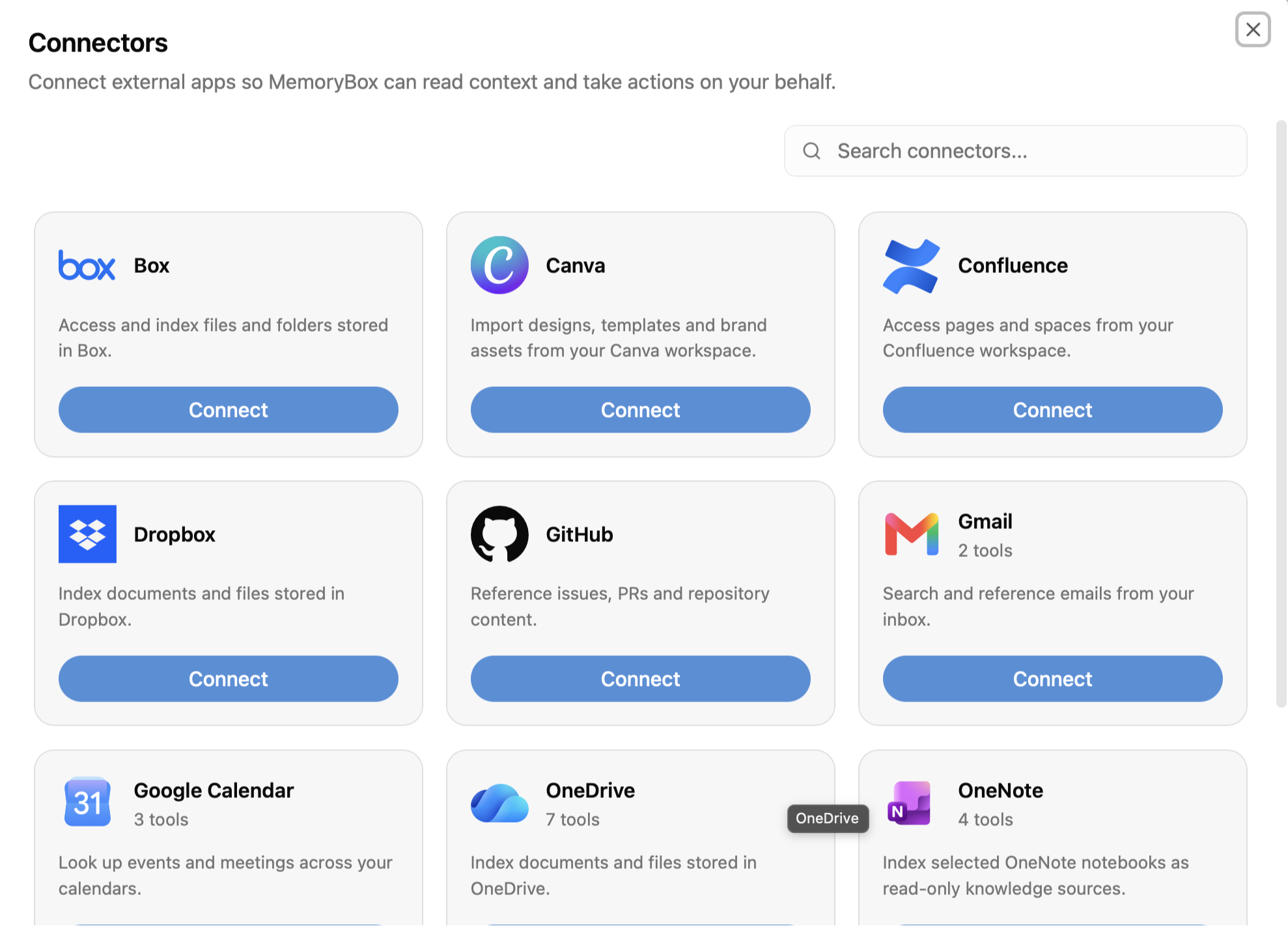
Connectors enable MemoryBox to access the apps you use every day, like email, calendars, chat, file storage, and source control. Connect an app once, and you can ask about it in chat, along with your memories.
Apps you can connect
- Email and calendar: Gmail, Google Calendar, Outlook
- Files and notes: Dropbox, Box, OneDrive, SharePoint, OneNote
- Team and work: Slack, GitHub, Confluence, Canva
How to connect an app
- In a chat, click the + button, then choose Connectors → Manage connectors.
- Find the app, click Connect, and sign in to give MemoryBox access.
- Go back to your chat and ask about it. You can also just ask in chat, like "Connect my GitHub account" or "Is Slack connected?"
You stay in control You choose what MemoryBox can do in each connected app. Each action has its own setting:
- Always allow: MemoryBox runs it without asking each time.
- Ask: MemoryBox asks for your approval each time.
- Never: MemoryBox can't use it.
By default, actions that only read are set to Always allow. Actions that write or delete are set to Ask.
For some apps, you can also choose which information MemoryBox can read: channels in Slack, labels in Gmail, and notebooks in OneNote.
Try asking:
- "What's on my Google Calendar this week?"
- "Find the latest emails about my flight in Gmail."
- "Summarize today's messages in the #general Slack channel."
FAQ
Q. How do I change permissions later? A. Open Manage connectors from the + button in a chat. On a connected app, click the Manage tool permissions icon. Change any action, or use Allow all, Ask all, or Never all.
Q. An app says "Reconnect." What happened? A. Your sign-in for that app expired. Click Reconnect and sign in again.
Q. Can MemoryBox send emails or add calendar events? A. Not right now. For Gmail and Google Calendar, MemoryBox can search and read, but it can't send, create, or delete.
Q. Can I choose which Slack channels or Gmail labels MemoryBox reads? A. Yes. On the Slack card, click Choose channels. On the Gmail card, click Choose labels.
In the Wild
Catherine Zell, Venture Capitalist, is a heavy AI user who runs her own company as a one-person shop. She wants AI to help with investment memos and deal analysis, without uploading private documents to a public service.
"I think it could be really good for my workflow. Local, on-device chatbot, that's perfect for everything."
— Catherine Zell, Venture Capitalist
With MemoryBox, she can use three different chatbots at the same time. She is also looking to build a custom memory system for her business, and says that MemoryBox, which comes pre-built out of the box, could be really good for her workflow.
Have a MemoryBox story to share? Reply to this email!
Let's connect
Follow along for user stories, AI tips, and a look at the people who build MemoryBox. If there's something you'd like us to cover, tell us. We read every suggestion.